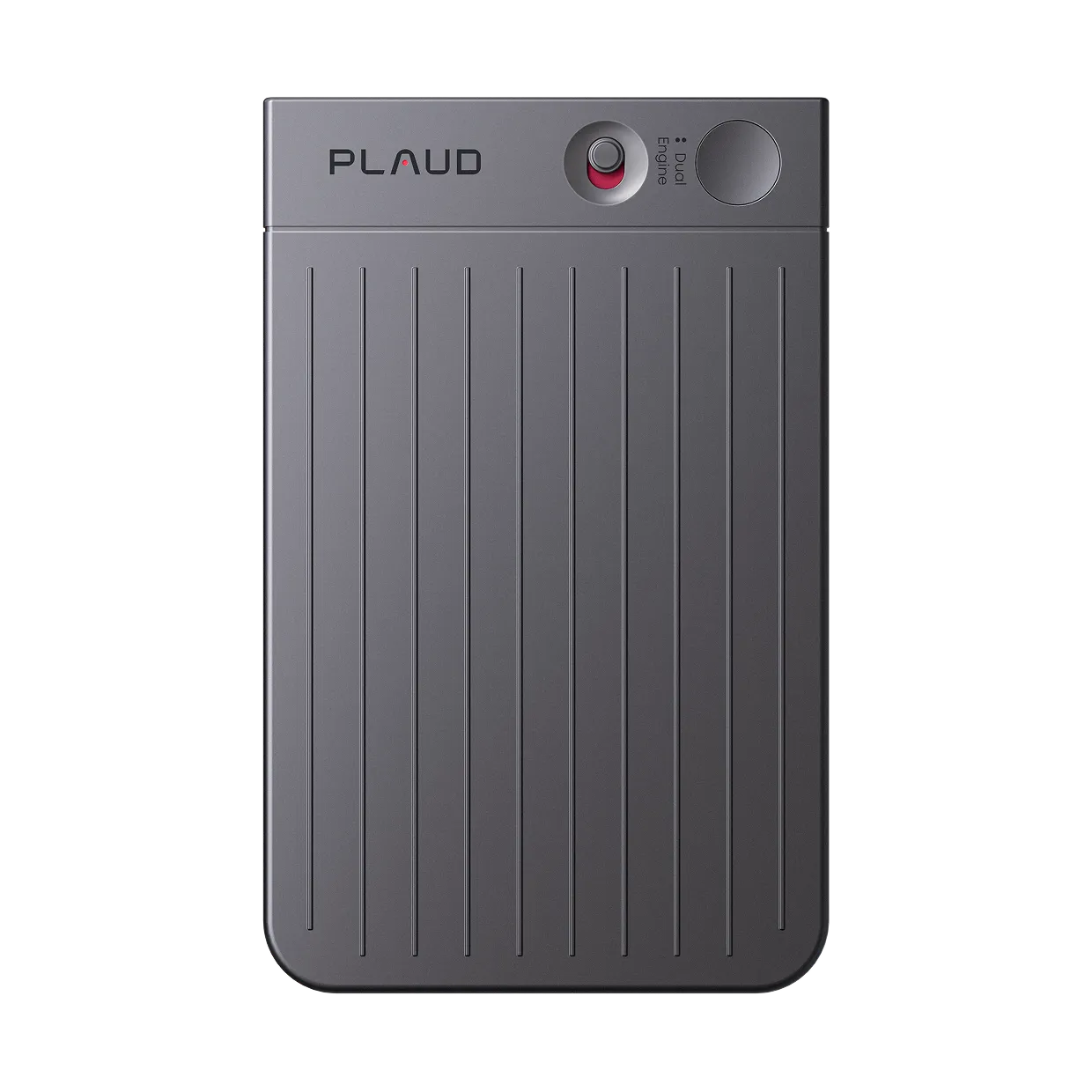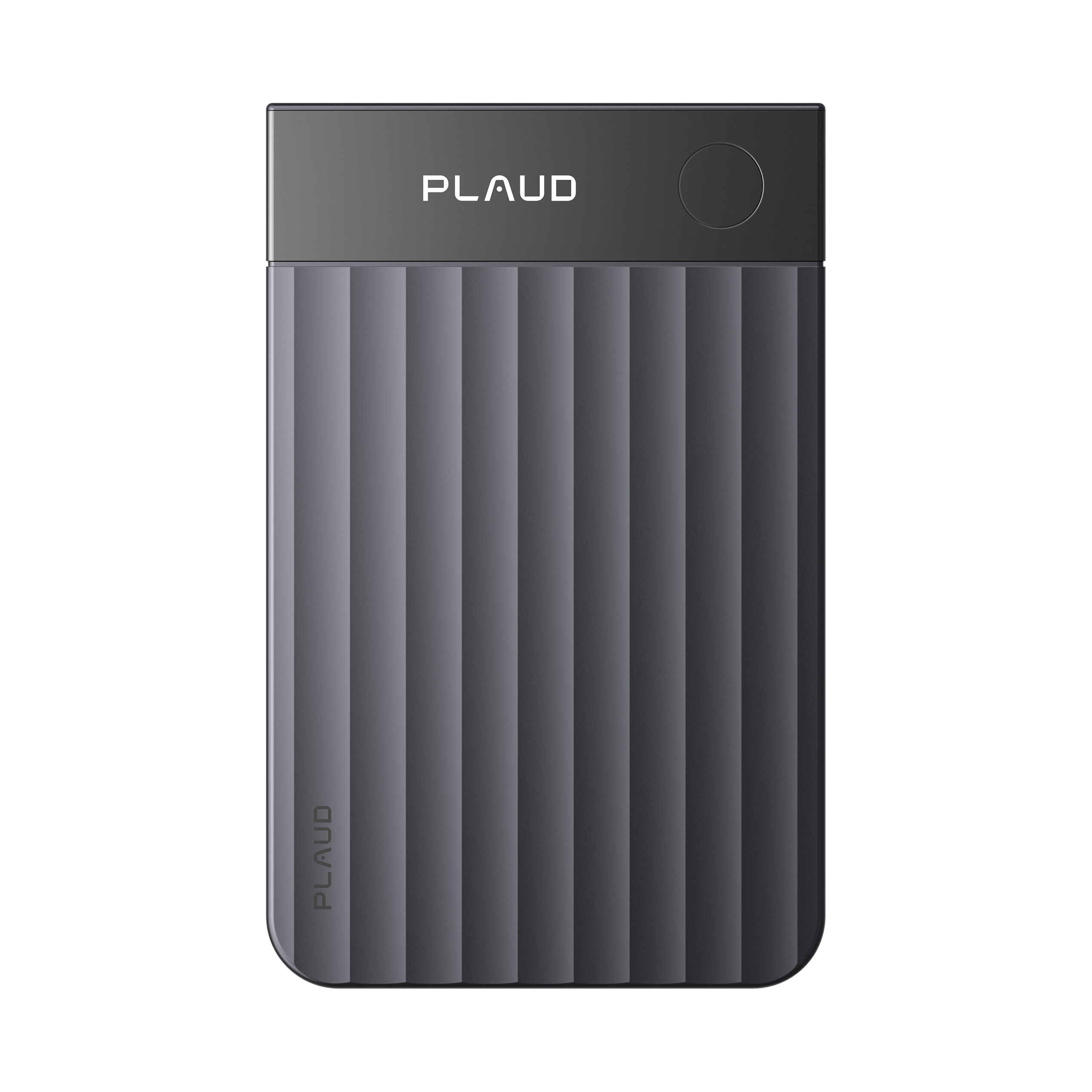


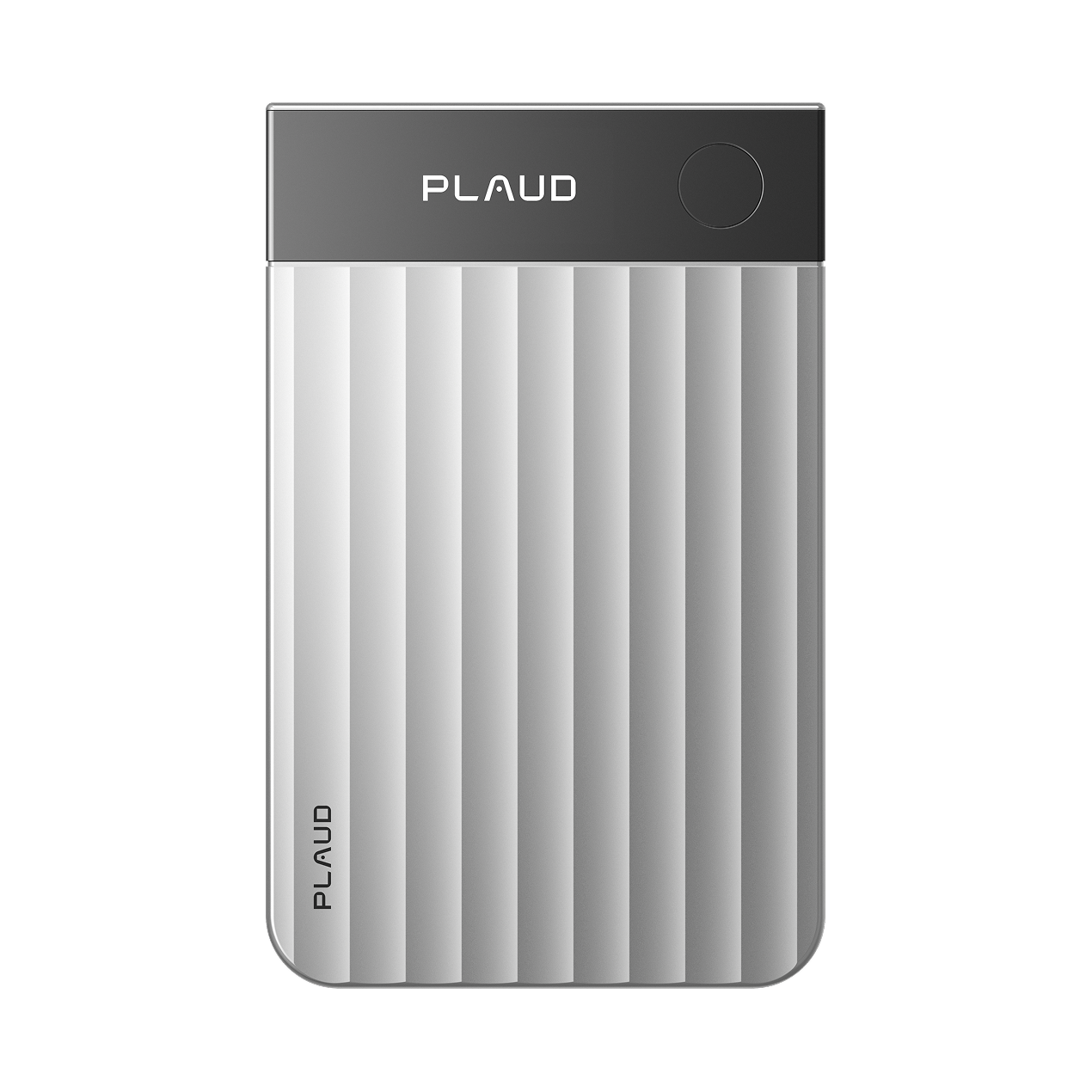


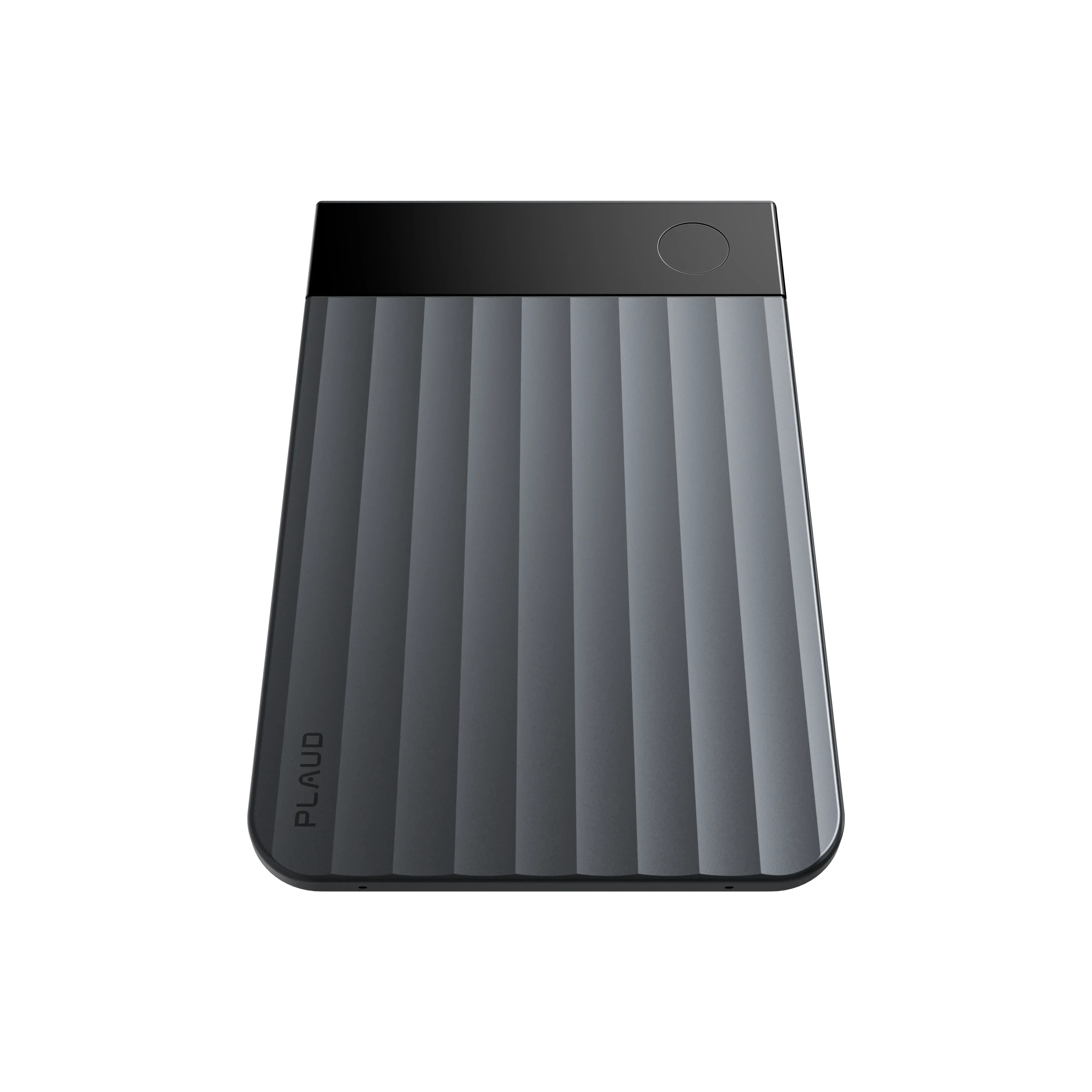
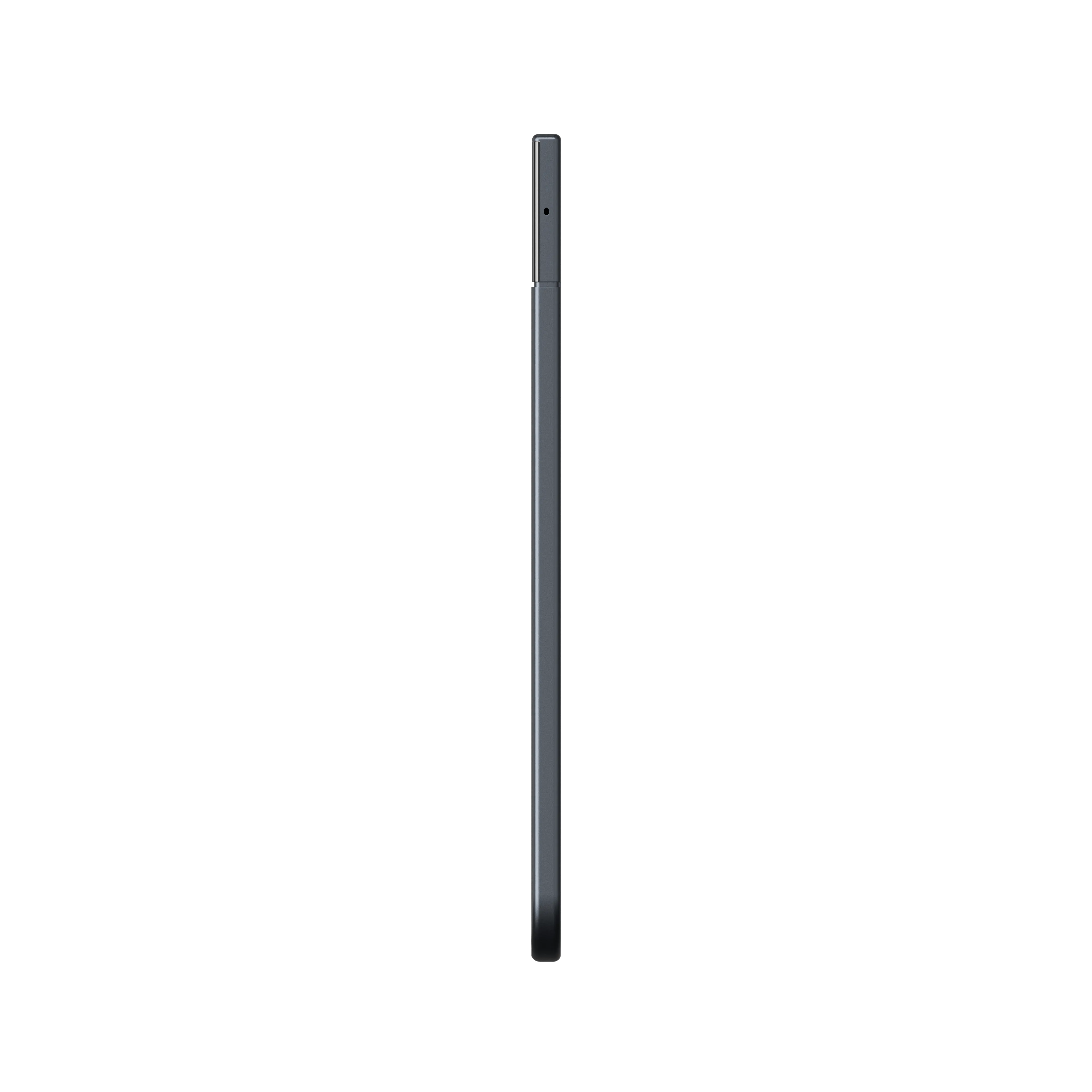
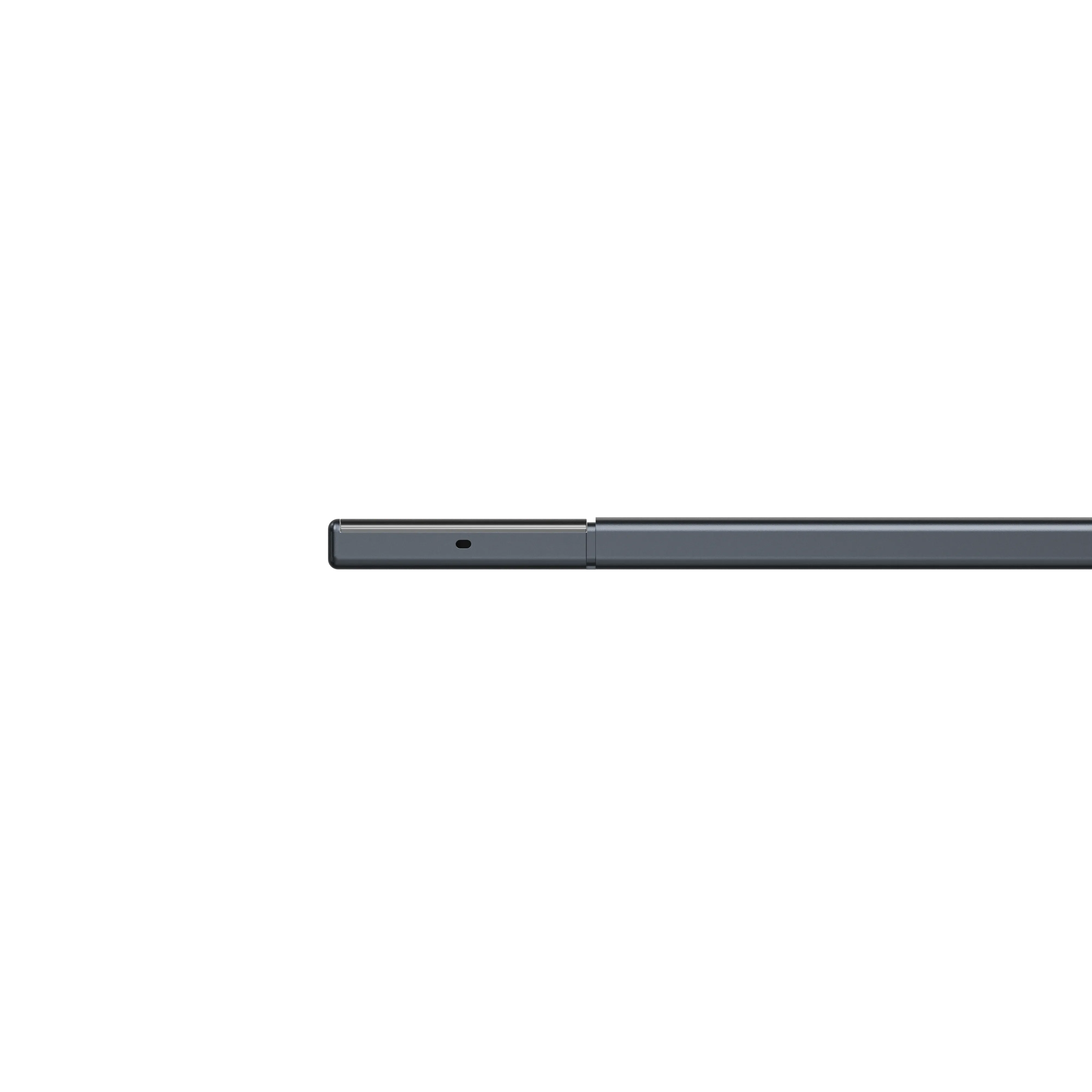
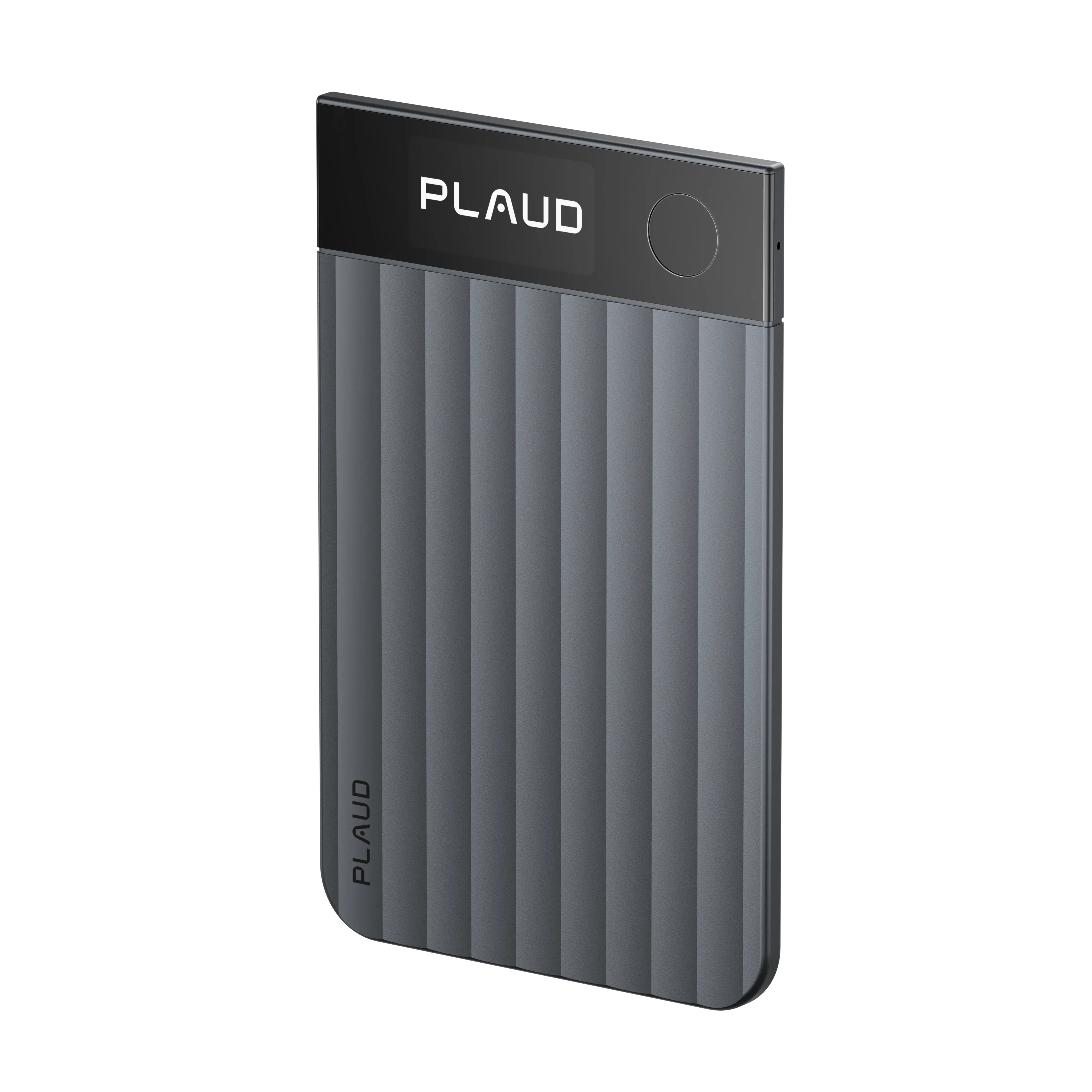
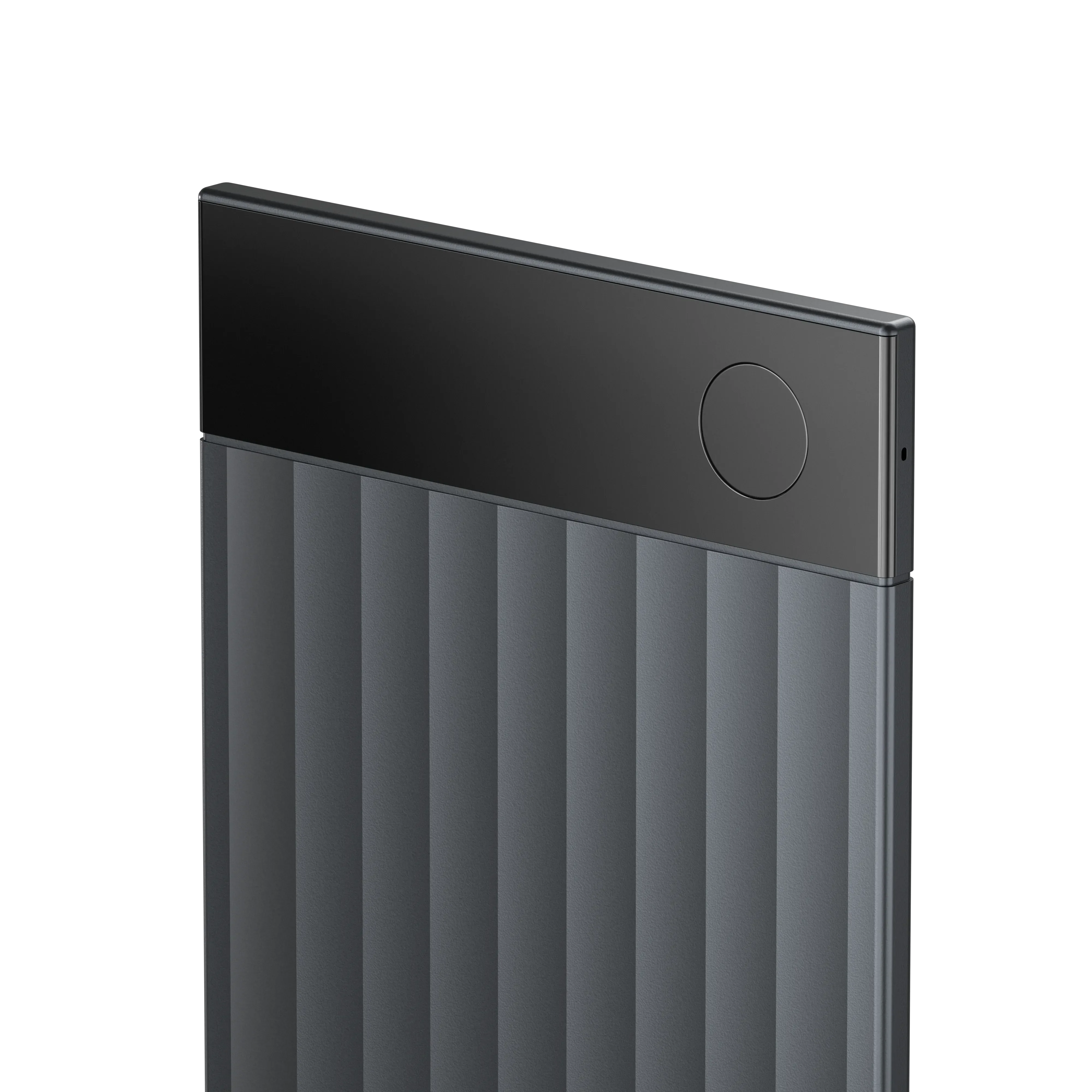
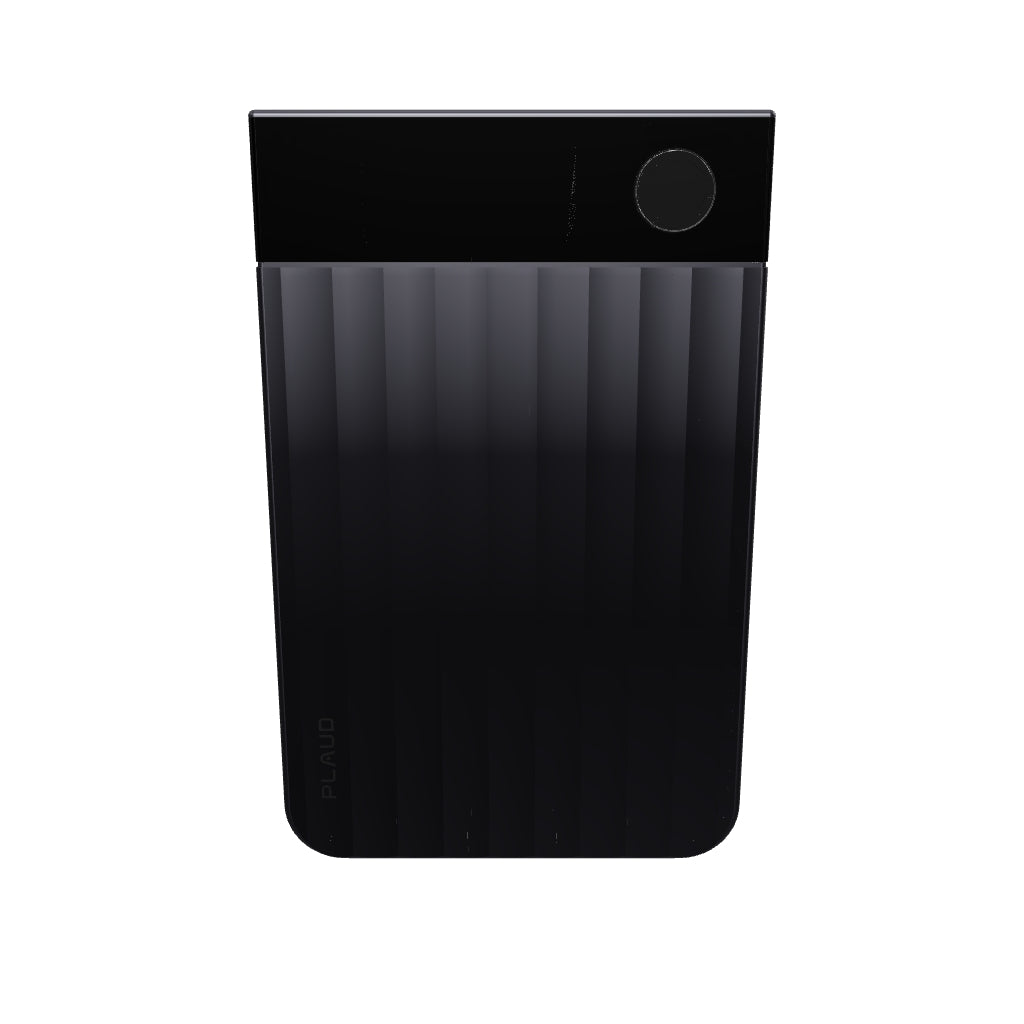
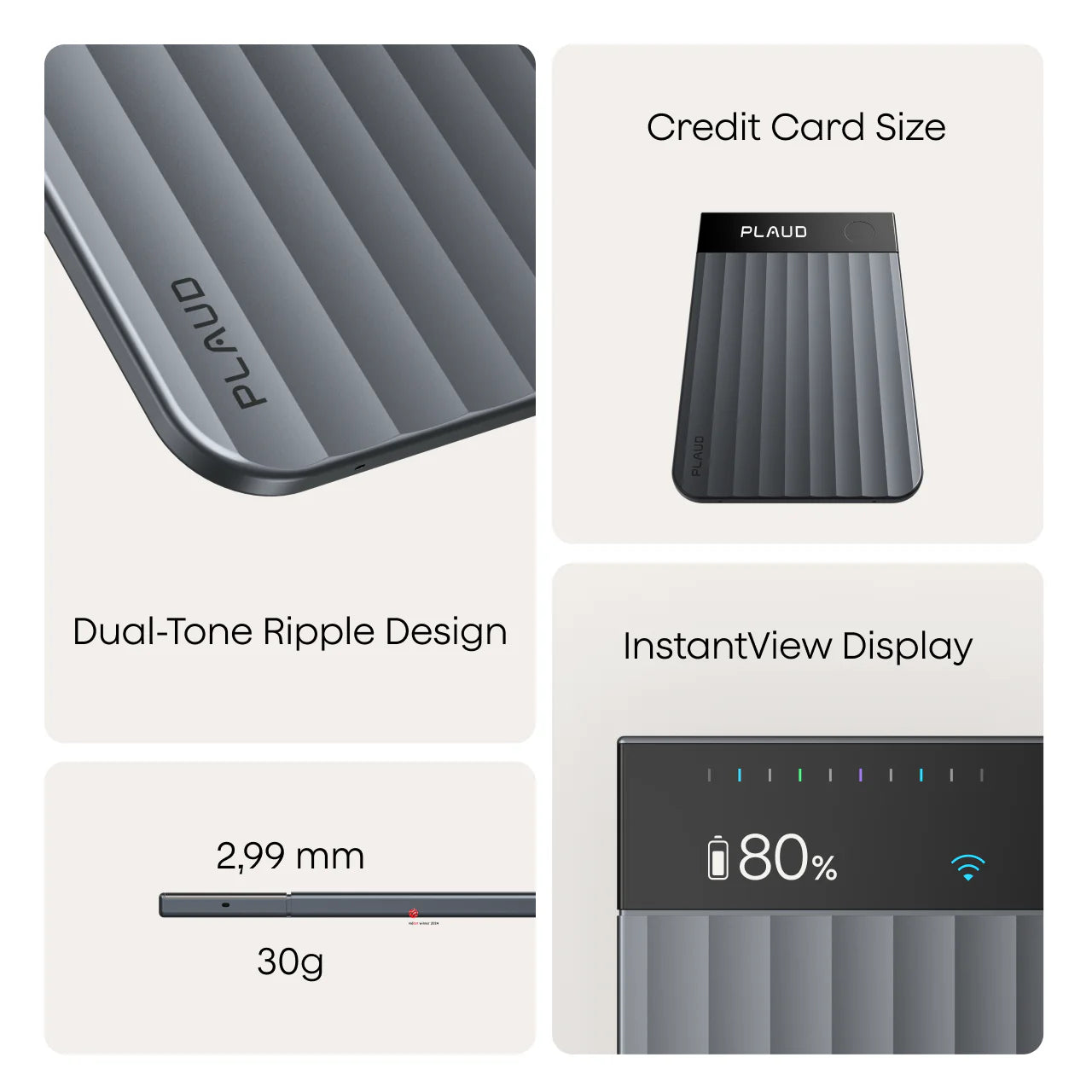
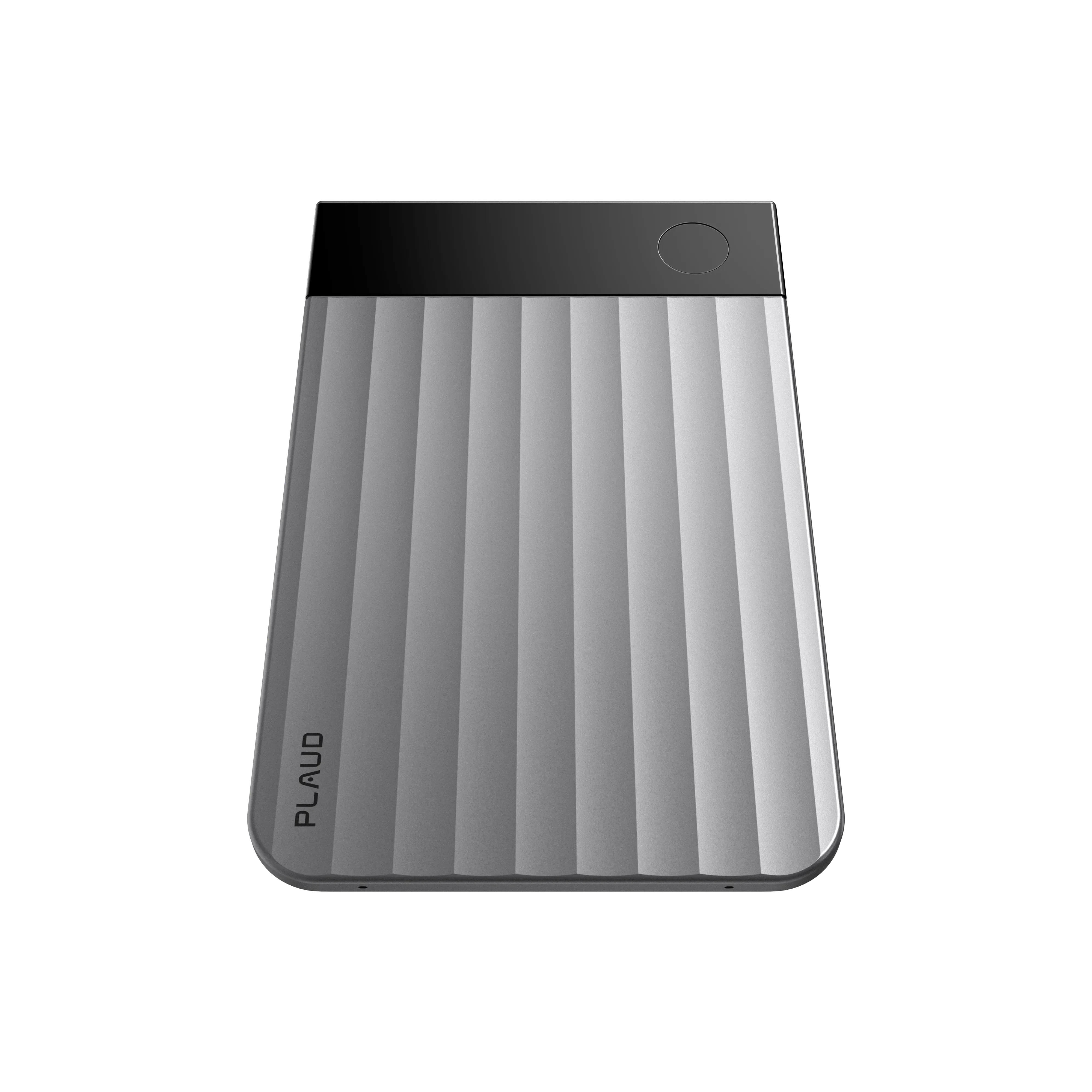
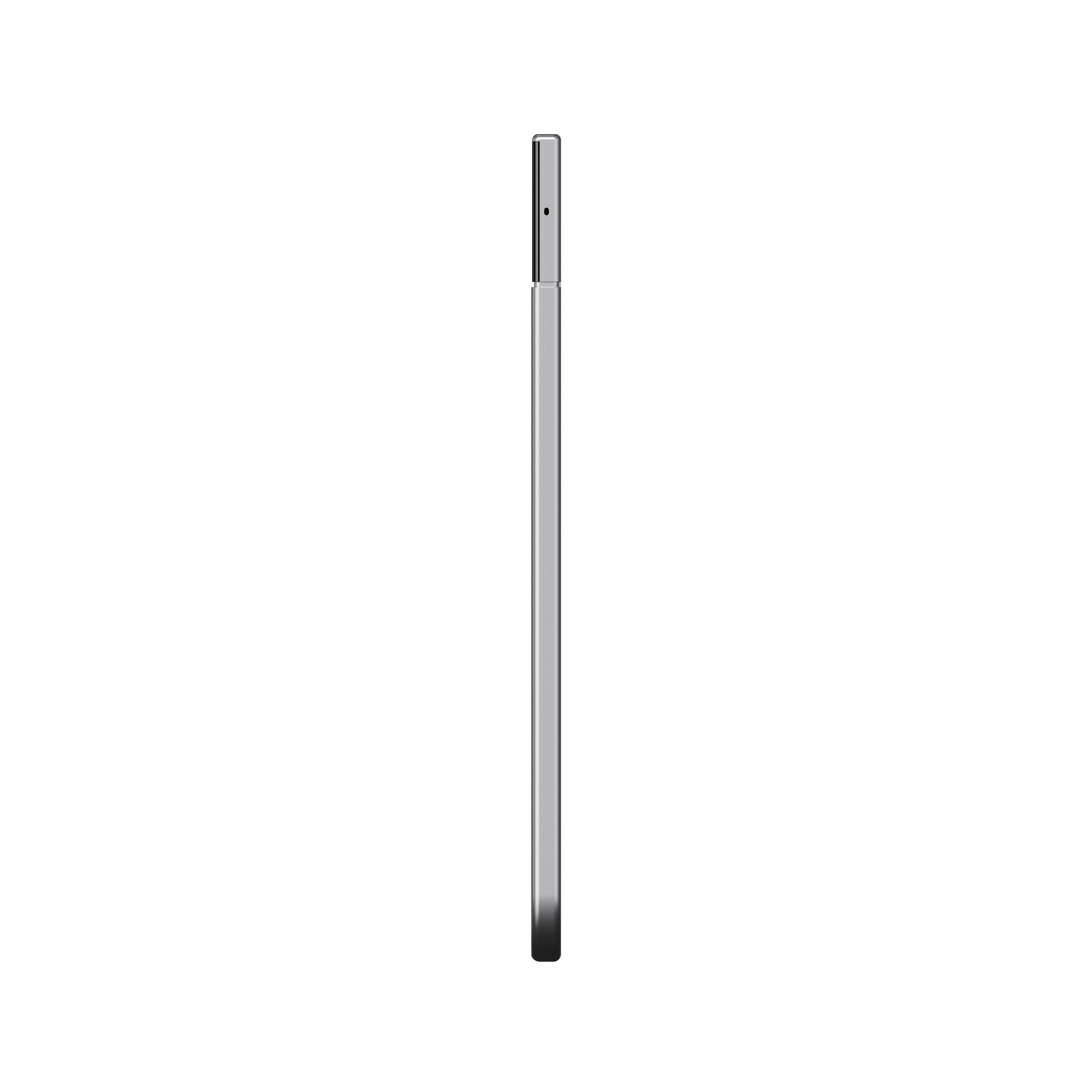
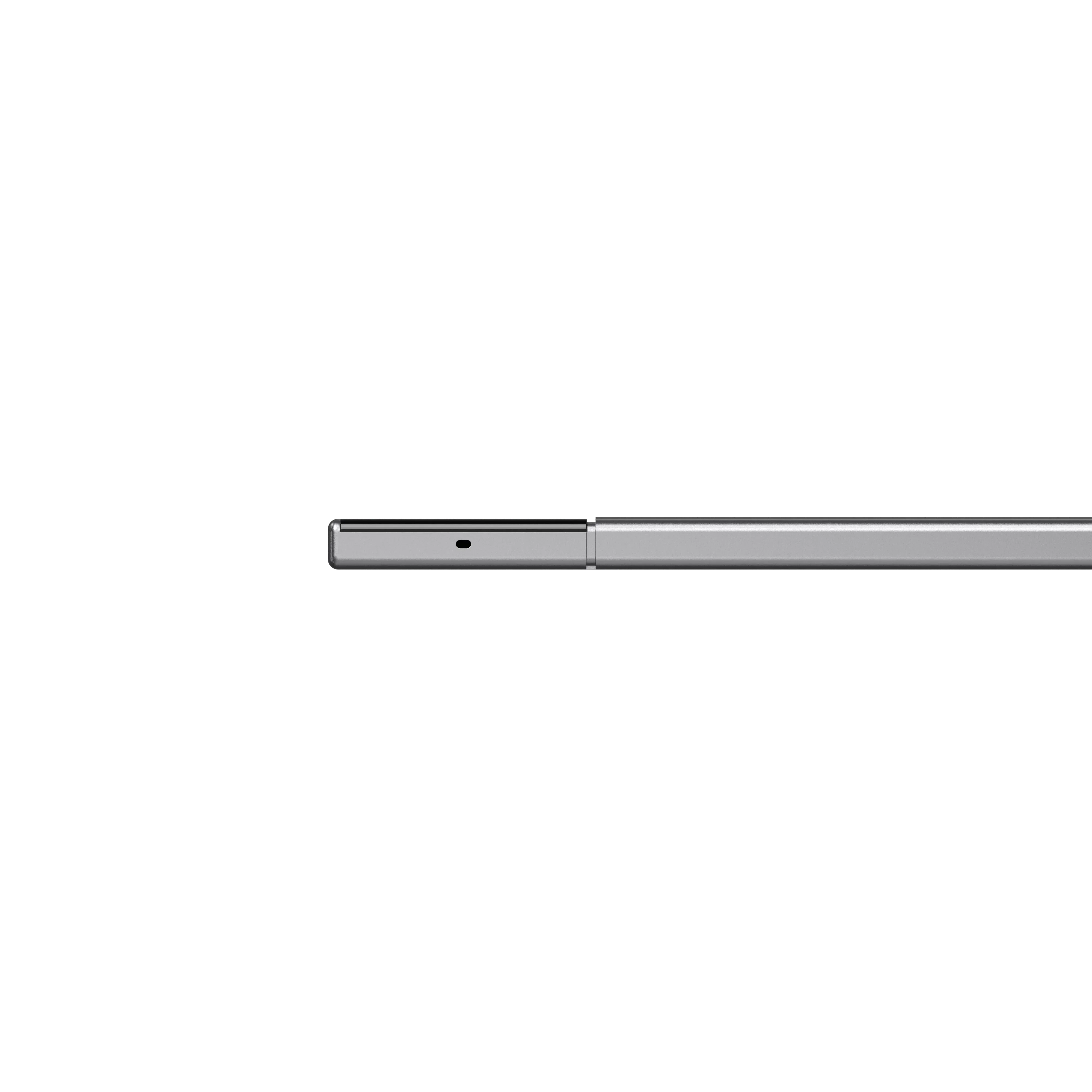
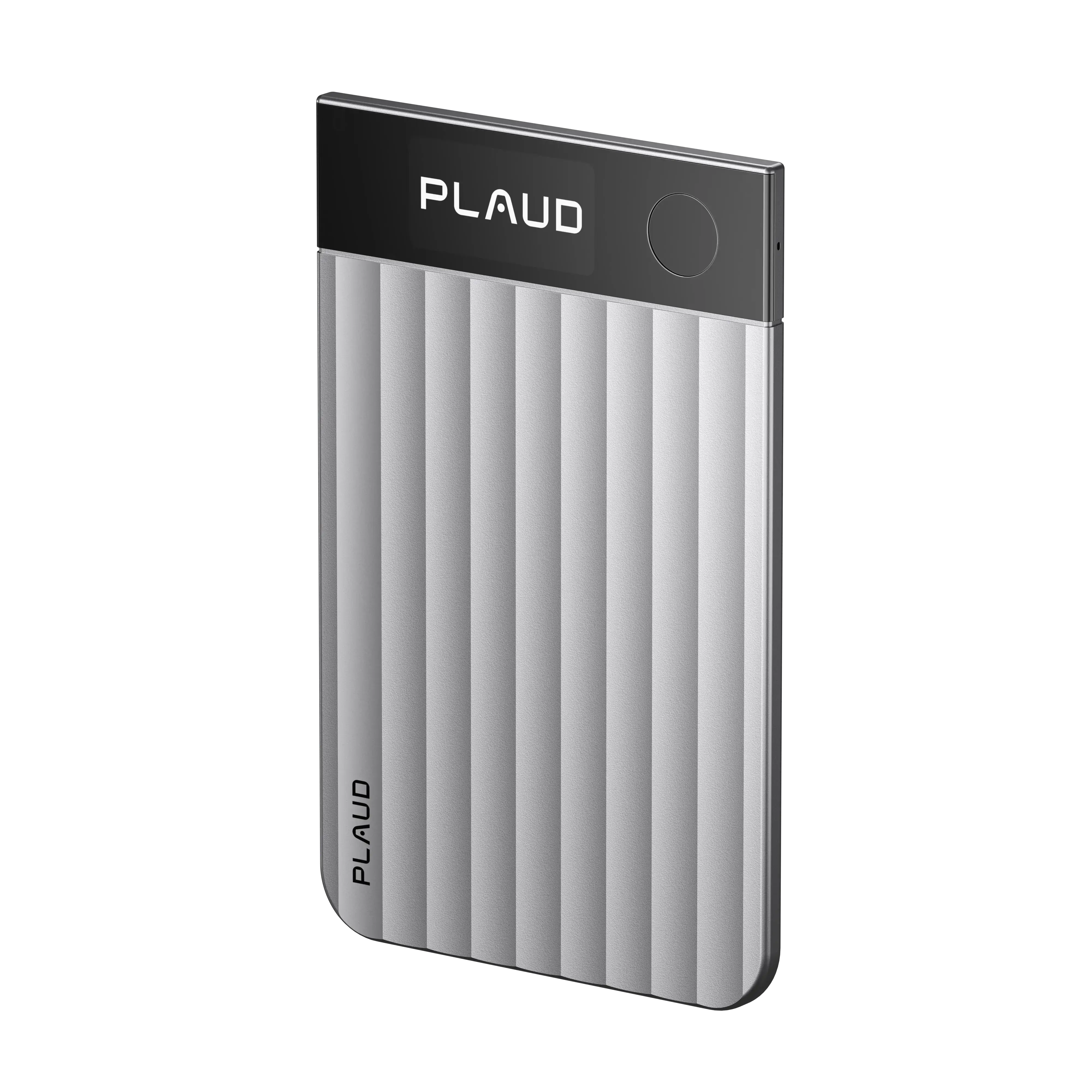
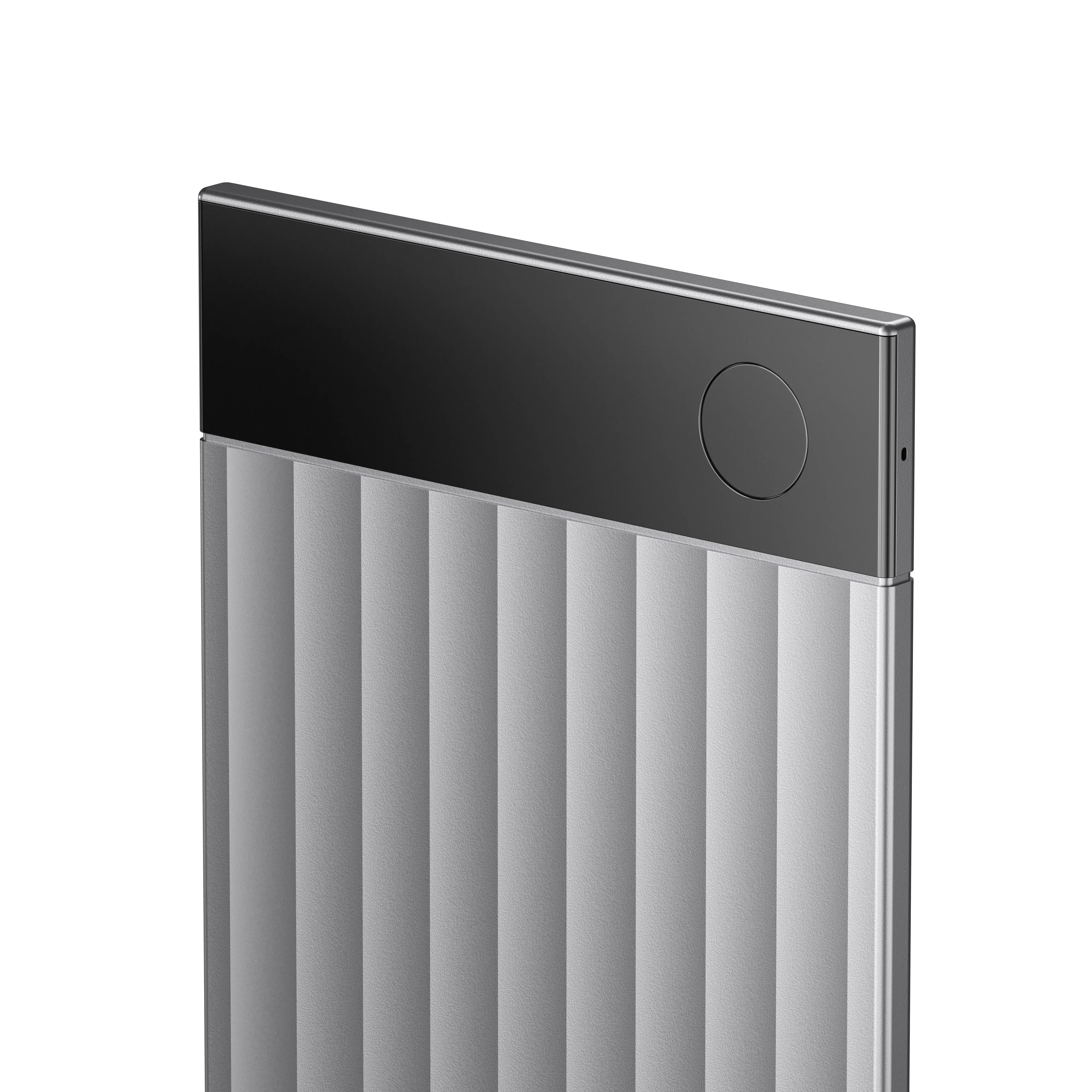
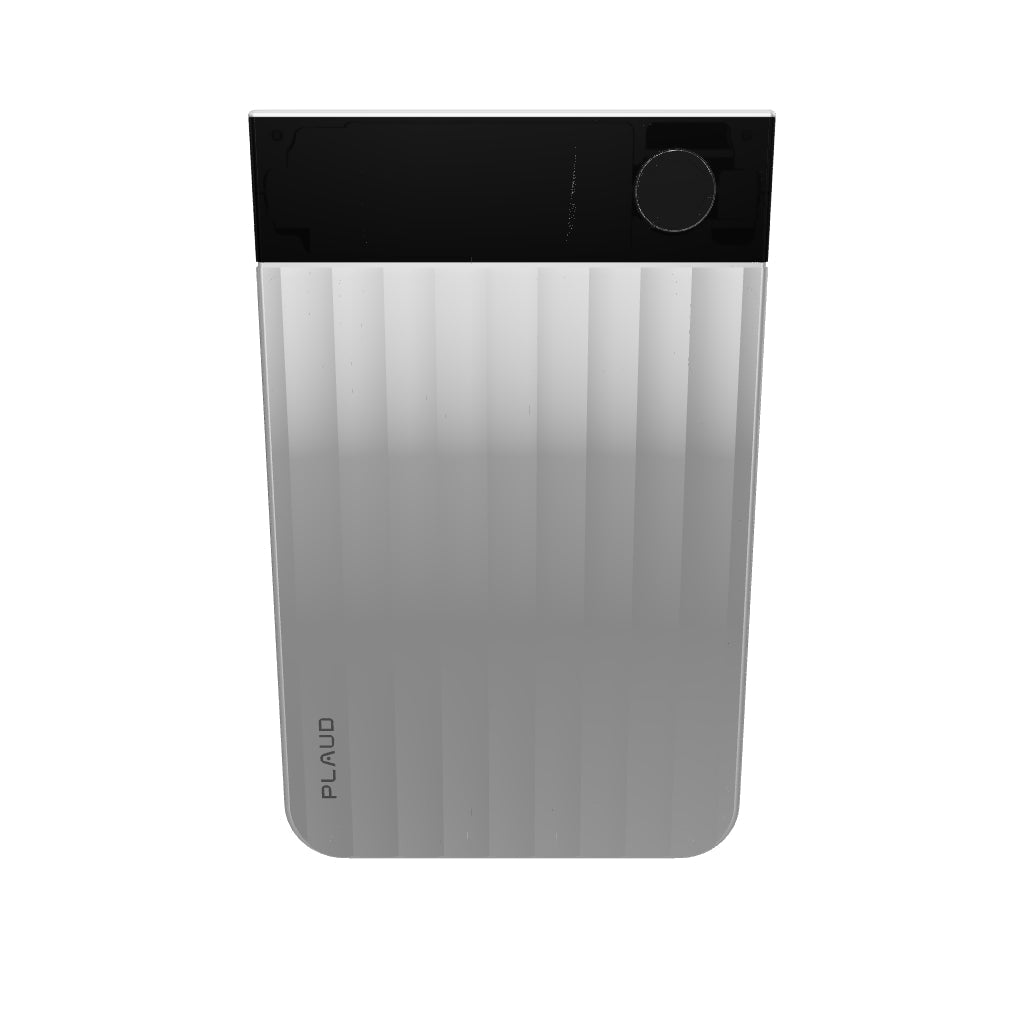
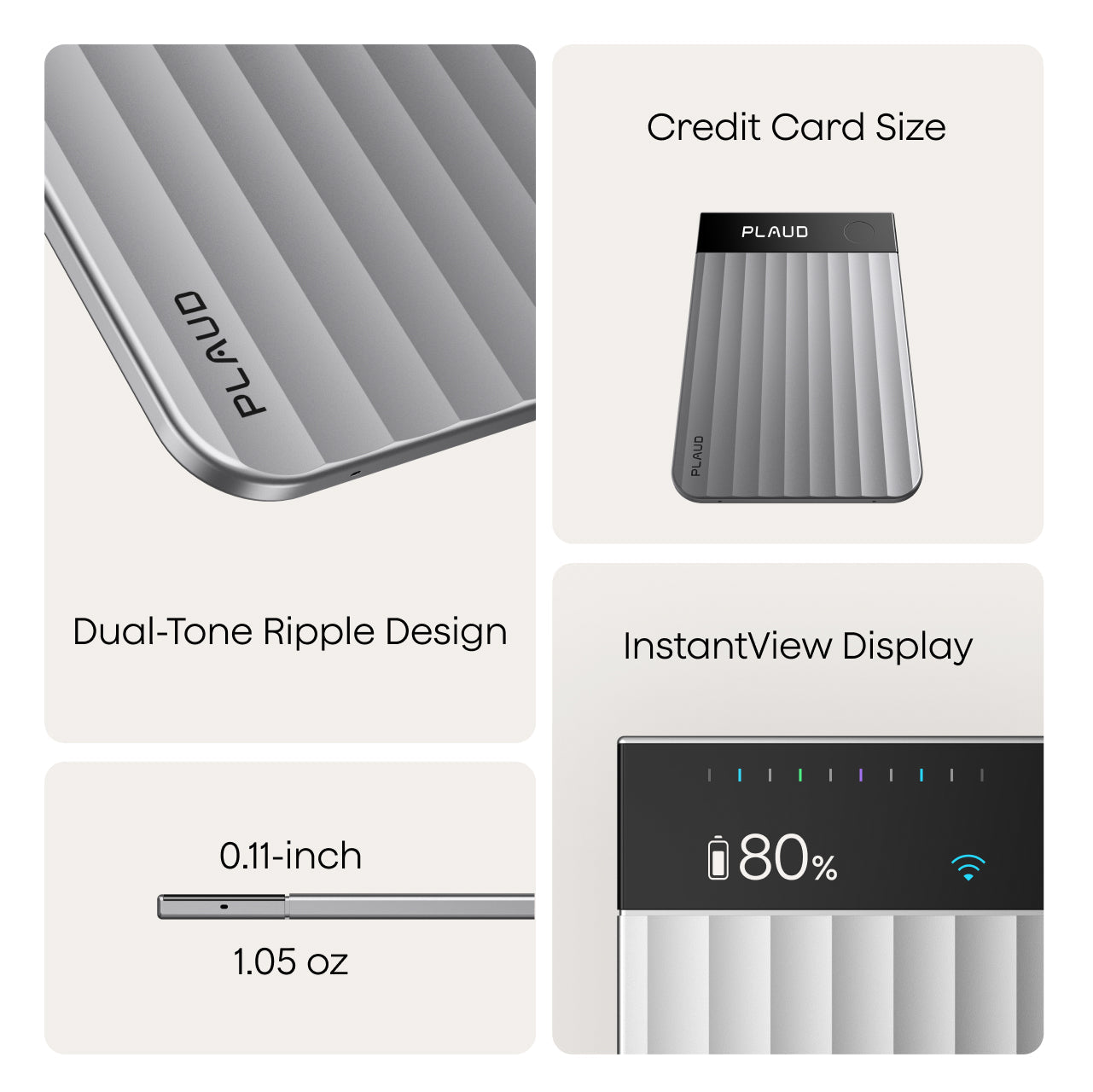
Plaud Note Pro
For high performers who want it all
What's in the box
Plaud Note Pro, Magnetic case, Magnetic ring, Charging Cable
Couldn't load pickup availability
Fast Shipping
Ship out within 2-3 business days.
One-Year Warranty
Warranty period subject to local laws.
7-Day Returns
Returns accepted for eligible items in original packaging.
Quick Customer Support
Quick support within 1-2 business days.
Plaud Note Pro Available Products are typically shipped out within 2-3 business days.

Key innovations overview

Professional AI note taker to maximize productivity
- Capture
- Extract
- Utilize
Capture
Audio | Highlight | Text | Image
Audio | Highlight | Text | Image

Extract
112 Languages | Speaker Labels | Multidimensional Summaries
112 Languages | Speaker Labels | Multidimensional Summaries

Utilize
Ask Plaud | AutoFlow | Integrate, Share & Export
Ask Plaud | AutoFlow | Integrate, Share & Export

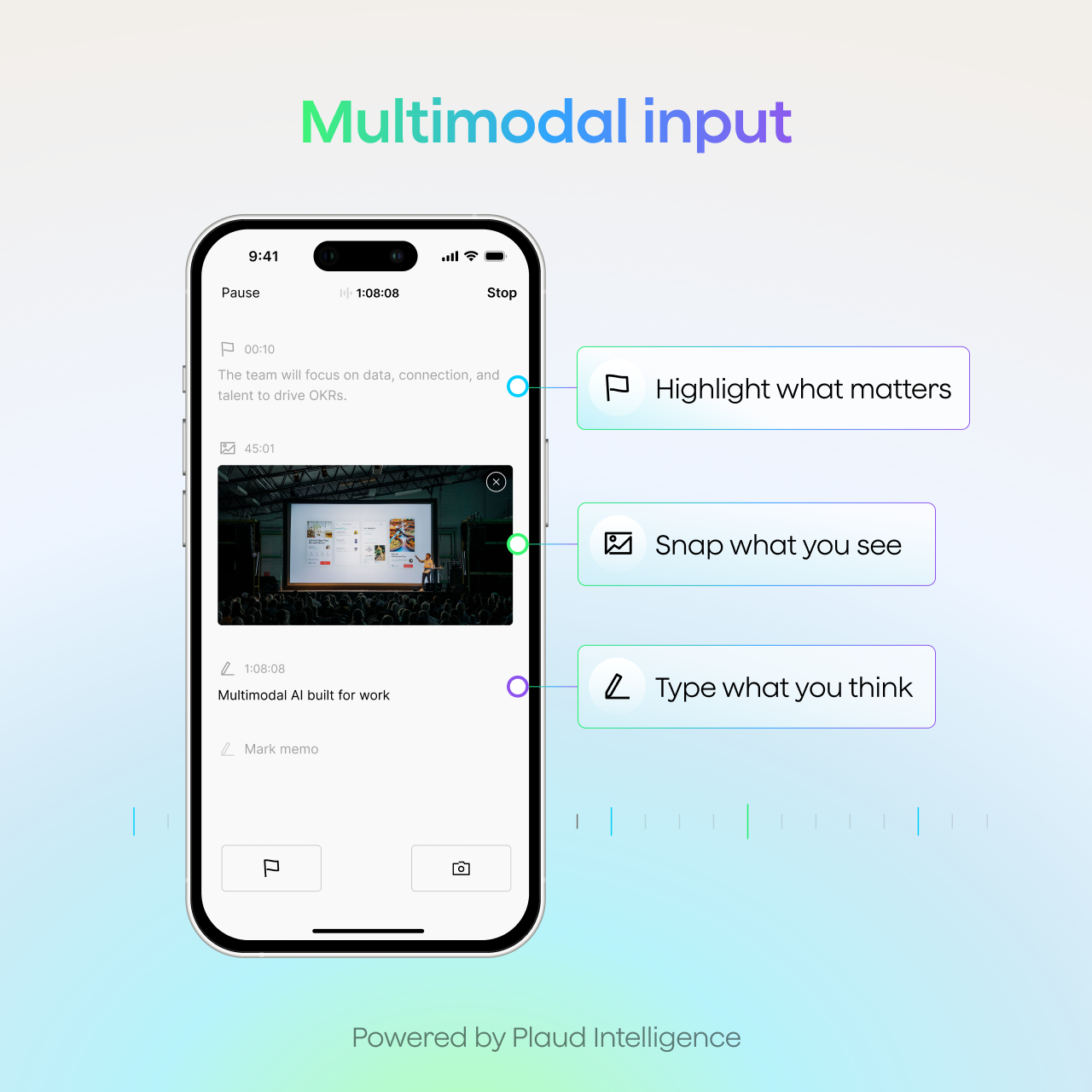
Multimodal Input
Human-Al alignment in real time
Capture what you say, hear, see, and think as it happens

No more missed moments in meetings or calls
With one press, Plaud Note instantly starts recording in crystal-clear audio, ensuring every word is preserved.

Highlight key moments with a short press
Plaud Note highlights the moment instantly, signaling to AI what matters most and achieving real-time human–AI alignment, so insights remain accurate, actionable, and aligned with your intent.

Type key points when they come to mind
Your text notes are added into the context instantly, ensuring summaries capture critical details and reflect your intent.

Snap a photo of what matters
Visuals combine with audio, text, and highlights to create richer context, resulting in more comprehensive summaries and a deeper understanding of every conversation.
Elevated recording experience
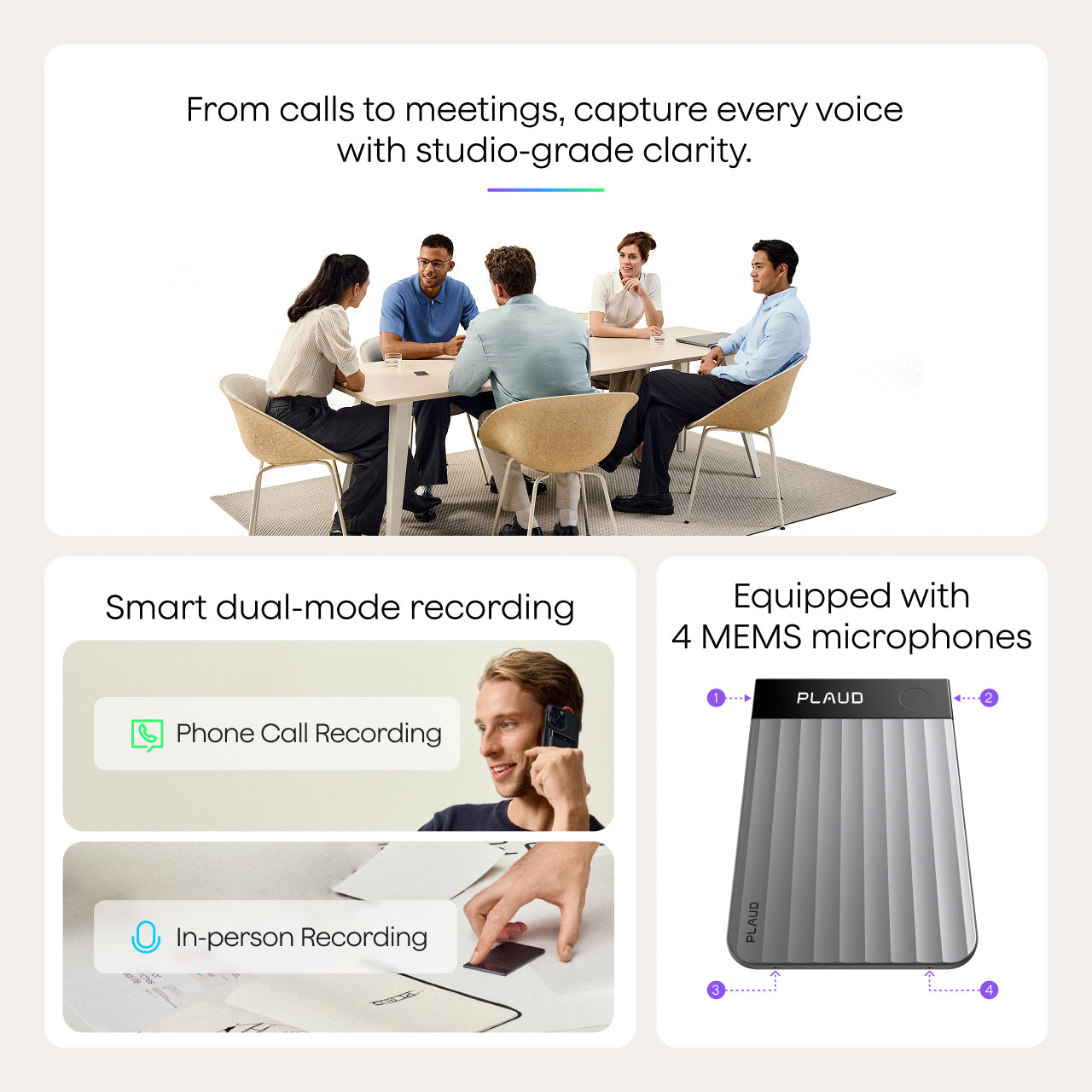
From calls to meetings, capture every voice with studio-grade clarity

Seamless recording for calls and in-person meetings
As the pioneer of dual-mode technology, Plaud Note Pro automatically shifts between calls and meetings, ensuring seamless recording while you focus on the conversation.

Hear every word clearly, even from 16.4 ft away
Engineered with a 4-MEMS mic array and AI beamforming, Plaud Note Pro captures voices clearly up to 16.4 ft, filtering out background noise for reliable audio in any setting.
AI note taker with various use cases

Stop taking notes, start leading meetings
Engage fully in discussion while Plaud Note Pro captures, summarizes, and visualizes key decisions, next steps, and insights for you.

Effortless call recordings that never slip through
Never struggle to recall a crucial detail again. Plaud Note Pro records and transcribes calls instantly, leaving you free to engage fully in the conversation.

Make eye contact, not taking notes
Stay completely present in every conversation while Plaud Note Pro delivers professionally formatted interview notes and key takeaways.

Speak ideas now, find them forever
Voice your thoughts, and have them transcribed, summarized, organized, and searchable-forever in your knowledge base.
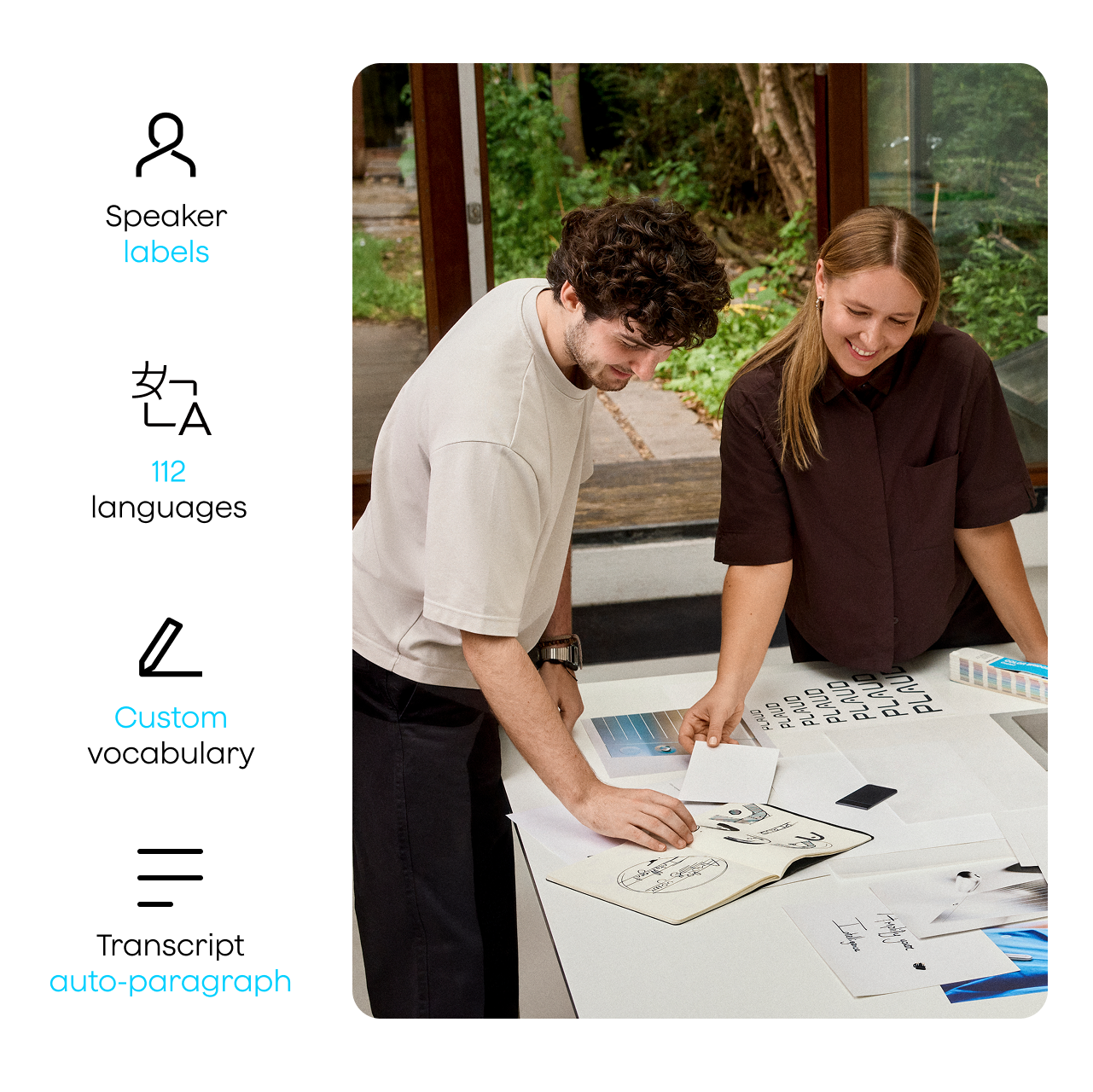
Reliable transcripts, whoever speaks, in any language

Industry-leading accuracy in every language
Get highly accurate transcripts in 112 languages with speaker diarization, custom vocabulary, and automatic formatting for clearer outputs.

Know who said what
Speaker labels keep every conversation organized, so you always know who said what.

Instant language and speaker detection
With Auto Generation, Plaud automatically generates transcripts with smart detection of language and speakers, providing accurate results seamlessly.

Tuned to your industry and vocabulary
Choose from 10+ built-in glossaries for industries like medical, legal, finance, and more. Plaud prioritizes glossary-matched terms, even with similar pronunciations, so your transcripts remain accurate and aligned with your field.
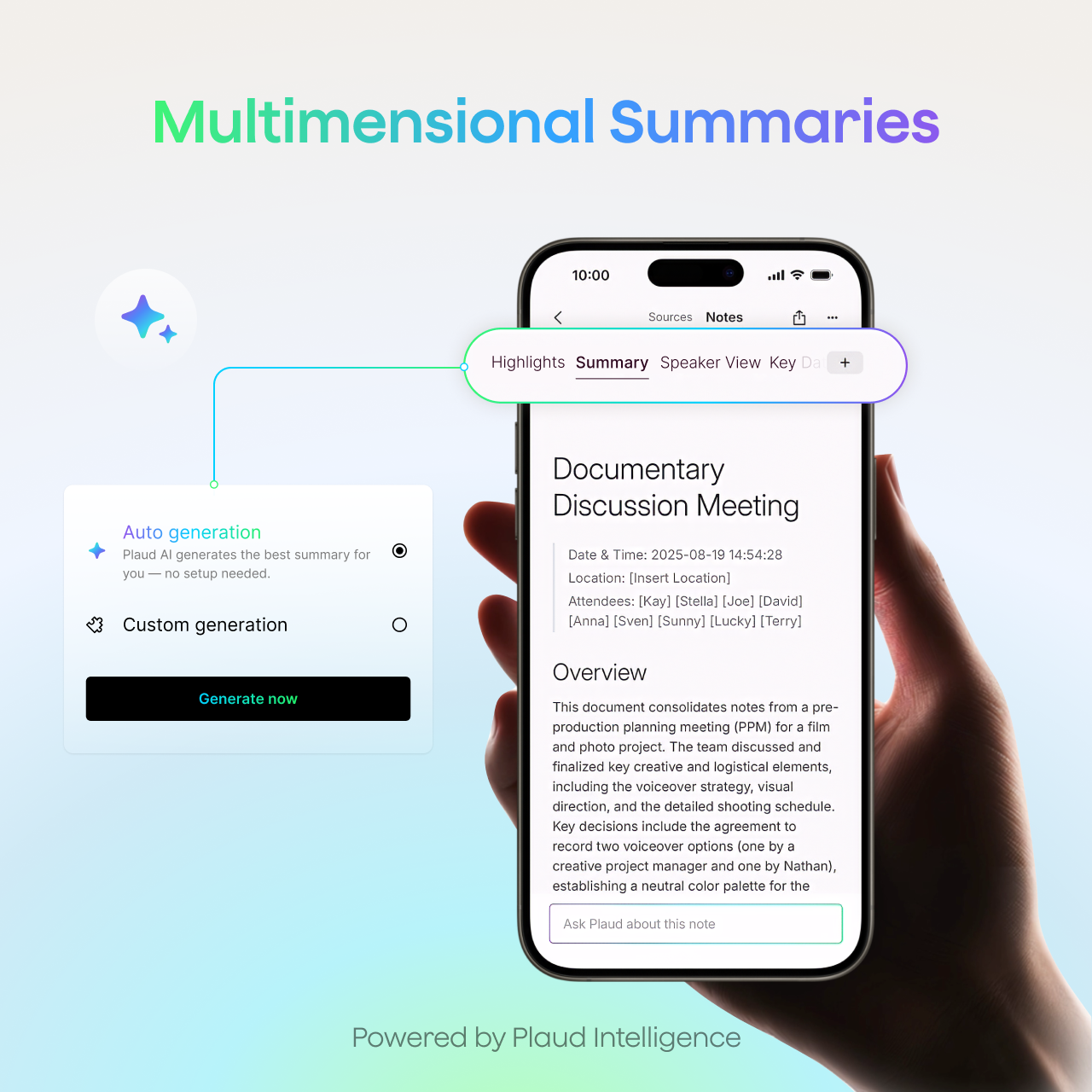
Multidimensional summaries
One conversation. Infinite perspectives.

See conversations from a different perspective
Generate multiple summaries from one conversation automatically. Multidimensional summaries deliver role-specific outputs such as action items for sales, feedback for teams, and strategic overviews for leadership, keeping your team aligned.

Smart summaries tailored to your role and industry
No matter your industry, Plaud Intelligence analyzes context, understands your role, and dynamically generates summaries beyond static templates, giving you expert-level insights tailored to your work.

Summaries built from audio, images, text, and highlights
Plaud captures spoken words, typed notes, images, and highlights. Plaud Intelligence, powered by advanced LLMs, unifies them into a complete, organized summary so what matters most always stands out clearly and in context.

Create a new perspective effortlessly
Access thousands of professional templates and generate multidimensional summaries that provide different perspectives while keeping your original recording intact, so you can explore, edit, and compare insights with full context.
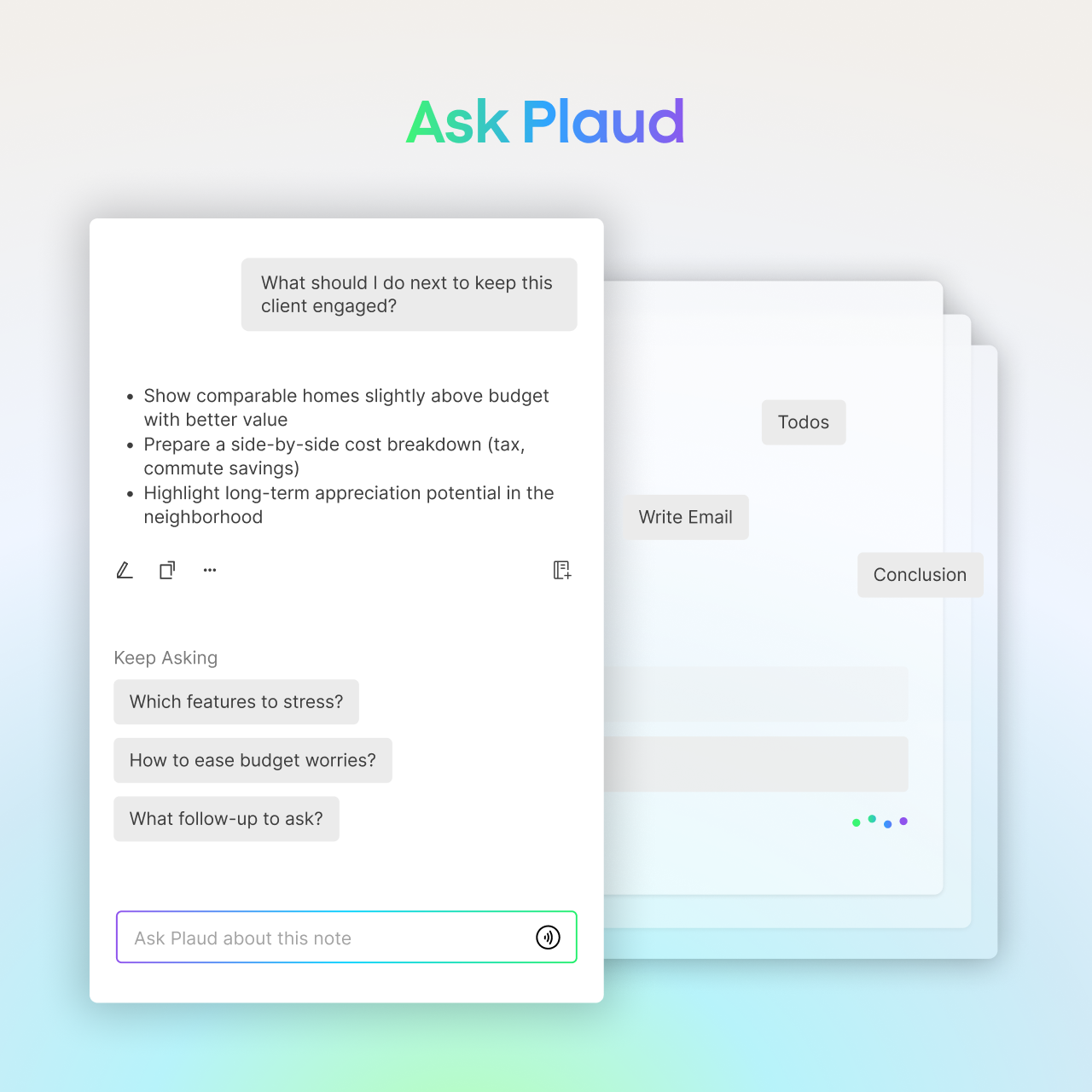
Ask Plaud
Turn every question into a trustworthy answer

Get answers that you can trust
Each one is grounded in references and traceable back to your original audio, so Ask Plaud is always trustworthy, accurate, and free from hallucinations.

Keep answers in a single step
Each one is saved as a note with full context and always accessible, so you can return anytime, build on the same thread with new questions, and let your insights grow continuously.

Ask a question and get guided further
The system surfaces meaningful perspectives around your query, helping you uncover deeper insights and build a more complete understanding with less effort.

Ask across files
Plaud discovers patterns and causation across multiple files, giving you the intelligence to make better, more informed decisions.
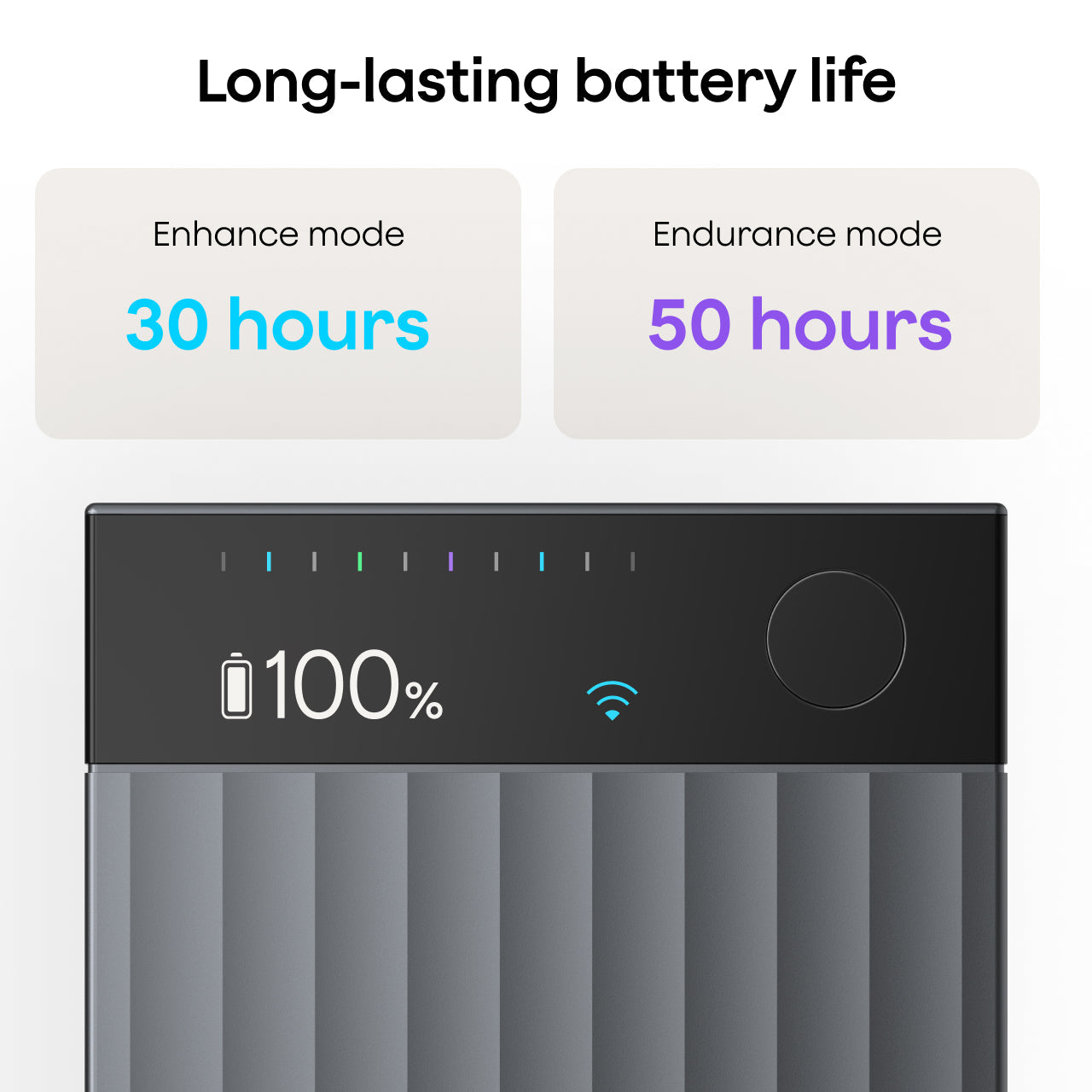
Long-lasting battery life


Private by design. Secure by default.


Specification
FAQs
What is Plaud Note Pro?
What is the difference between Plaud Note Pro and Plaud Note?
How to use Plaud Note Pro?
Is the recording quality of Plaud Note Pro better than that of traditional dictation devices?
Is recording with the Plaud Note Pro better than using an app or a smartphone?
Who is Plaud Note Pro for?
How are my recordings and transcriptions protected?
Do I have to pay a monthly fee to use Plaud?
What is the difference between Plaud Note and Plaud Note Pro?
How do I update the firmware for my Plaud Note Pro?
How do I find the Serial Number of my Plaud Note Pro?
Is the recording quality of the Plaud Note Pro better than the Plaud Note?
How does the Plaud Note Pro automatically switch between two recording modes?
Are there any discounts available for Plaud Note Pro?